Starting with bestzero Appsbox version 2.5.8 and Authentication Server version 6.6.2, a dynamic Zero App Source can be created using LDAP attributes of user objects.
This allows the Zero App Source to be variably modified via domain attributes. Therefore, you can use a single app configuration for multiple users, as the destination path (e.g., for RDP connections) is resolved dynamically per user.
The Authentication Server reads the attributes via the domain connection. However, not all attributes of a user object are captured by default. Additional attributes must be added manually in the web interface.

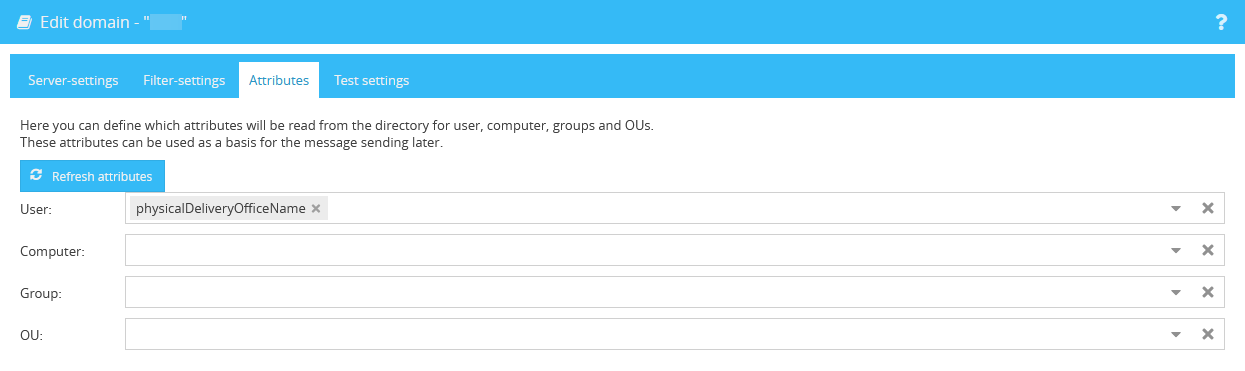
To add additional domain attributes, open the web interface of your Authentication Server. Navigate to the app System > Domains and edit your default domain (highlighted in green).
1.Switch to the Attributes tab.
2.Add the name of the attribute you want to read to the user object (in this example, physicalDeliveryOfficeName). If the desired attribute is not included in the pre-selection, enter the name manually and confirm by pressing the Enter key. 3.After entering the data, click Save.
Your domain will then be re-read. The duration of this process varies depending on the amount of data. If you are using Microsoft Domain Services, changes are updated automatically every 30 minutes, and the entire domain is fully re-read every 24 hours. |
To create an app with a dynamic Zero App Source using LDAP attributes, first follow the steps in the chapter Create a New App.
Enter your attribute in the text field "Dynamic Address as Regular Expression" in the following format:
|
ad_attr:[Attribute Name]|.* |
If you want to grant access to multiple machines, you can use multiple attributes in the same text field:
|
ad_attr:[Attribute Name 1]|ad_attr:[Attribute Name 2]|.* |
(Make sure to replace [Attribute Name], including the square brackets, with the actual name of your attribute, e.g., ad_attr:physicalDeliveryOfficeName|.*).
Example:
If you have set cordaware.local as the address and the read domain attribute of the logged-in user is computer1, this user can access computer1.cordaware.local.
If you use multiple attributes, each attribute is evaluated as an individual value in front of the address. For example, if the user has the values computer1 and server1 in the read attributes, they will have access to computer1.cordaware.local and server1.cordaware.local.
Displaying the Read Attribute in the Appsbox
To display the read attribute in the Link Info, enter the variable %%userdata:dynprefix%% into the corresponding text field. As soon as a user opens the Link Info, the variable is automatically replaced by the value of the attribute.